UPD (2026-10-21): the section Wayland: No Drop-In Replacement (Yet) below says there is no replacement for x2x on Wayland. I have since found one that works for me: lan-mouse, a software KVM written in Rust. I run it on a Wayland laptop (niri) and it sends my keyboard and mouse to the X11 machine (the Archcraft box on the TV) — the same “push the cursor past the edge” feel as x2x, but from a Wayland desktop to an X11 server.
Short setup:
Install lan-mouse on both machines, and make sure it is the same version / commit. The crates.io 0.11.0 release and git main speak different protocol revisions — mine failed with invalid event id until both sides matched.
On the X11 machine run lan-mouse daemon (it picks the X11 emulation backend). I run it as a systemd user service with DISPLAY=:0 and XAUTHORITY=%h/.Xauthority so it starts on boot.
On the Wayland machine add the X11 machine to ~/.config/lan-mouse/config.toml:
[[clients]]
position = "right"
hostname = "tv-box"
activate_on_startup = true
Pair them: each side has to authorize the other’s certificate with lan-mouse cli authorize-key <name> <sha256-fingerprint>, then lan-mouse cli save-config. The fingerprint comes from openssl x509 -in ~/.config/lan-mouse/lan-mouse.pem -noout -fingerprint -sha256. Use it in lowercase — the uppercase form did not work for me.
Allow UDP port 4242 between the machines.
Getting back: after the cursor has moved to the X11 machine, simply moving it back to the left does not always work for me. The reliable way is lan-mouse’s release bind: press Ctrl + Shift + Super + Alt together and the cursor returns to the original screen.
What x2x Does
x2x connects two X displays so the keyboard and mouse on one can control the other. Move your cursor past the edge of your screen and it slides onto the second display. Type on your keyboard and the keystrokes go there too. Clipboard selections pass between displays as well.
It has been around since 1996, originally written by David Chaiken at DEC. It uses the XTEST extension under the hood and works over regular X11 connections or SSH tunnels.
No KVM switch. No remote desktop window eating half your screen. Just your cursor sliding from one monitor to another.
My Setup
I have a ThinkPad T460s sitting on a bookshelf next to my TV. It runs Archcraft, is plugged into a docking station, and is connected to the TV over HDMI. From the couch I sit with my regular laptop. I run x2x from the laptop, and when I move the cursor past the right edge of my laptop screen, it appears on the TV. I can control the homeserver from there — open a browser, fix a stuck media player, inspect a desktop app — without reaching for a second keyboard.
That is the whole point. One keyboard, one mouse, two screens.
What I tried before this
I did not land on x2x right away. I first went through the more obvious options:
RDP — a full remote desktop in its own window. It works, but it is exactly that: a window layered over my screen, not a seamless cursor handoff. For “quickly fix something on the server” it is overkill.
VNC — same story: a window with someone else’s desktop, laggy image, clicking around a tiny preview. Not the feel I was after.
KDE Connect — can use a phone as a touchpad/keyboard and does plenty of other cross-device things, but it is built for the “phone ↔ computer” pairing, not “two desktop X displays side by side.”
They all solve “show me someone else’s screen.” I wanted the opposite — leave both screens as they are and just pass the keyboard and mouse between them. In my case x2x fit noticeably better than any of them: no window, no second desktop — the cursor simply flows onto the adjacent monitor.
Installation
x2x is packaged in most distributions:
Terminal window
# Arch Linux / AUR
yay-Sx2x
# Debian / Ubuntu
sudoaptinstallx2x
# Fedora
sudodnfinstallx2x
# Gentoo
sudoemergex11-misc/x2x
Or build from source:
Terminal window
gitclonehttps://github.com/dottedmag/x2x && cdx2x
./bootstrap.sh
./configure
make && sudomakeinstall
Method 1: SSH (Simpler and More Secure)
The easiest way is to SSH from your main machine to the homeserver with X forwarding enabled and run x2x there:
Terminal window
ssh-XChomeserverx2x-east-to:0.0
-X enables X11 forwarding over SSH
-C enables compression
-east means the homeserver display is to the right (east) of your laptop
-to :0.0 targets the default display on the remote machine
If your laptop is on the right and the homeserver is on the left, use -west instead.
You can also specify the full display address:
Terminal window
ssh-XChomeserverx2x-west-tohomeserver:0.0
When you disconnect the SSH session, x2x stops automatically. No lingering processes.
In practice, the command I actually run from my laptop is:
Terminal window
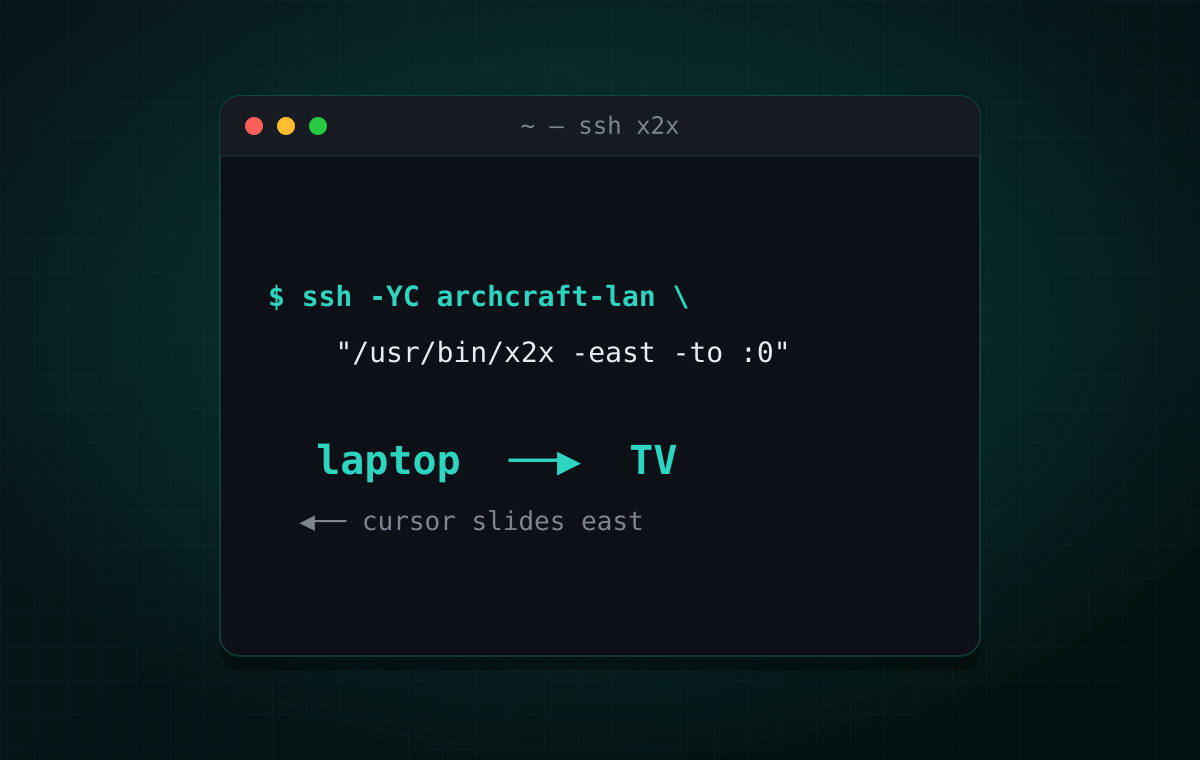
ssh-YCarchcraft-lan"/usr/bin/x2x -east -to :0"
The full path to x2x matters because SSH does not source your login profile when you pass a command, so PATH may not find it otherwise. -YC enables forwarding with compression, archcraft-lan is the hostname on my LAN, and -to :0 targets the homeserver’s default display.
Method 2: Direct Connection with xauth
If you want copy/paste between displays to work, or you want to avoid the SSH layer, you can run x2x locally and connect directly to the remote X server.
First, copy the X11 authentication cookie from the homeserver to your laptop.
Where :0 is your laptop display and homeserver:0.0 is the remote display.
You can verify your cookies are in place with:
Terminal window
xauthnlist
You also need X11 TCP port access open on both machines (port 6000+display number). Check /etc/X11/xorg.conf or your display manager settings for Xlisten or XenableTCP.
Method 3: xhost (Local Only, Quick and Dirty)
For local use on a trusted network, you can skip cookie authentication entirely. On the homeserver, allow your laptop to connect:
Terminal window
xhost+laptop-ip-address
Then from your laptop:
Terminal window
x2x-from:0-tohomeserver:0.0-east
This is the least secure option. Anyone on the network could connect to your X server. Fine for a home LAN you trust, not for anything exposed.
Useful Options
Terminal window
# Specify direction
x2x-toserver:0.0-east# server is to the right
x2x-toserver:0.0-west# server is to the left
x2x-toserver:0.0-north# server is above
x2x-toserver:0.0-south# server is below
# Don't capture the mouse (keyboard only)
x2x-toserver:0.0-east-nomouse
# Disable clipboard sharing
x2x-toserver:0.0-east-nosel
# Wait for displays to be ready (useful in scripts)
x2x-toserver:0.0-east-wait
# Block cursor from sliding back while mouse buttons are pressed
x2x-toserver:0.0-east-buttonblock
The Cursor-Stuck Problem
One real issue I have not fully solved: when the SSH connection drops (WiFi hiccup, sleep, whatever), the cursor can get stuck on the homeserver display. You cannot move it back to your laptop because x2x is no longer relaying mouse events, but the remote X server still thinks it owns the cursor.
Workarounds:
Kill and restart x2x. If the SSH session is still alive, killing x2x on the remote side returns the cursor to the local display.
SSH back in and run xdotool mousemove. If you can get a shell on the homeserver, you can teleport the cursor back programmatically:
Terminal window
sshhomeserverxdotoolmousemove00
Use xhost + from the homeserver directly. If you have physical access, sit at the TV and type:
Terminal window
# On the homeserver, kill any lingering x2x process
pkillx2x
If anyone has a cleaner solution for this, I would like to hear it.
When to Use x2x
Good for:
Controlling a headless-ish machine next to your main workstation
A home server plugged into a TV that you occasionally need to interact with
Situations where you want screen real estate, not a remote desktop window
Quick two-machine setups that do not justify a KVM switch
Not great for:
Machines far away on a slow network (latency matters here)
Wayland — see below
Multi-monitor setups with complex layouts (it gets fiddly)
Wayland: No Drop-In Replacement (Yet)
x2x relies on X11’s XTEST extension to inject input events into other windows. Wayland was designed with a stricter security model — one compositor cannot directly control or inject input into another. This breaks x2x’s core functionality entirely.
There is no direct Wayland equivalent today. The closest alternatives:
Input Leap (fork of Barrier/Synergy) — shares mouse and keyboard over the network, has better Wayland support than its predecessors. Works as a client/server model rather than raw input injection.
Synergy / Barrier — the older tools Input Leap forked from. Still around, still maintained, but Input Leap is generally preferred now.
KVM switches or USB hub sharing — hardware solution, no software involved. Fine if both machines are physically close.
I have not tried any of these. My guess is none of them will feel as seamless as x2x — the cursor-sliding, the zero-config feeling, the “it just works” over SSH. These tools run as services, need configuration, and operate at a different layer. But if you are on Wayland, they are what you have.
The Linux community is working on standardized protocols (like XDG-foreign) to allow controlled input and clipboard sharing between Wayland compositors, but nothing stable or widely available yet. Another option worth watching is rkvm, a Wayland-native input sharing tool written in Rust.